Run your first review
Connect a GitLab repository, open a merge request, and read the review results.
Using GitHub? Follow the GitHub pull request setup guide. Compare both workflows in the security and code-quality review guide.
Start your free trial
Sign up with GitLab or GitHub and name your workspace. Creating a new workspace starts your 14-day free trial with 5 developer seats and no card required. Connect your repositories next; you can subscribe and manage seats in workspace settings.
Before you begin
- A Code Voucher workspace that will own the repositories, private runs, teammates, and integrations
- A GitLab project with merge request pipelines enabled
- A dedicated GitLab service account with Maintainer or Owner access to the project
- Owner or administrator access to the Code Voucher workspace
Installation
- 1
Create the workspace
Continue with GitLab, then name the Code Voucher workspace that will own the review configuration. GitHub or GitLab sign-in identifies you; it does not grant Code Voucher access to your repositories. - 2
Assign developer seats
In workspace settings, assign a developer seat to each teammate whose merge requests you want reviewed. Your trial includes capacity for 5 developer seats; purchasing capacity and assigning seats are separate actions. - 3
Connect the service account
Follow Connect GitLab to add a dedicated GitLab account to the workspace. Its token—not your login—controls repository access and the identity used for review comments. - 4
Discover and enable the repository
Open Repositories, refresh the projects visible to the service account, and choose Enable. Code Voucher creates and manages the webhook secret, installs the managed GitLab hook, and verifies the connection before accepting events. - 5
Require a passing review before merge (optional)
To block merging until the review passes, enable Pipelines must succeed in GitLab. Code Voucher publishes a pending, passing, or failing review status directly to the merge request pipeline. - 6
Open a merge request
Push a focused source change and open a merge request. The managed webhook creates the review; no Code Voucher YAML, setup merge request, or dedicated runner is needed. - 7
Wait for the review status
The pipeline displays code-voucher/review. It remains pending while the review runs, then passes or fails the same merge request pipeline.
Inspect the results
Follow the dashboard link from code-voucher/review. Check that the commit SHA matches, then read the verdict, findings and verification limits. Use Activity for execution and publication records.
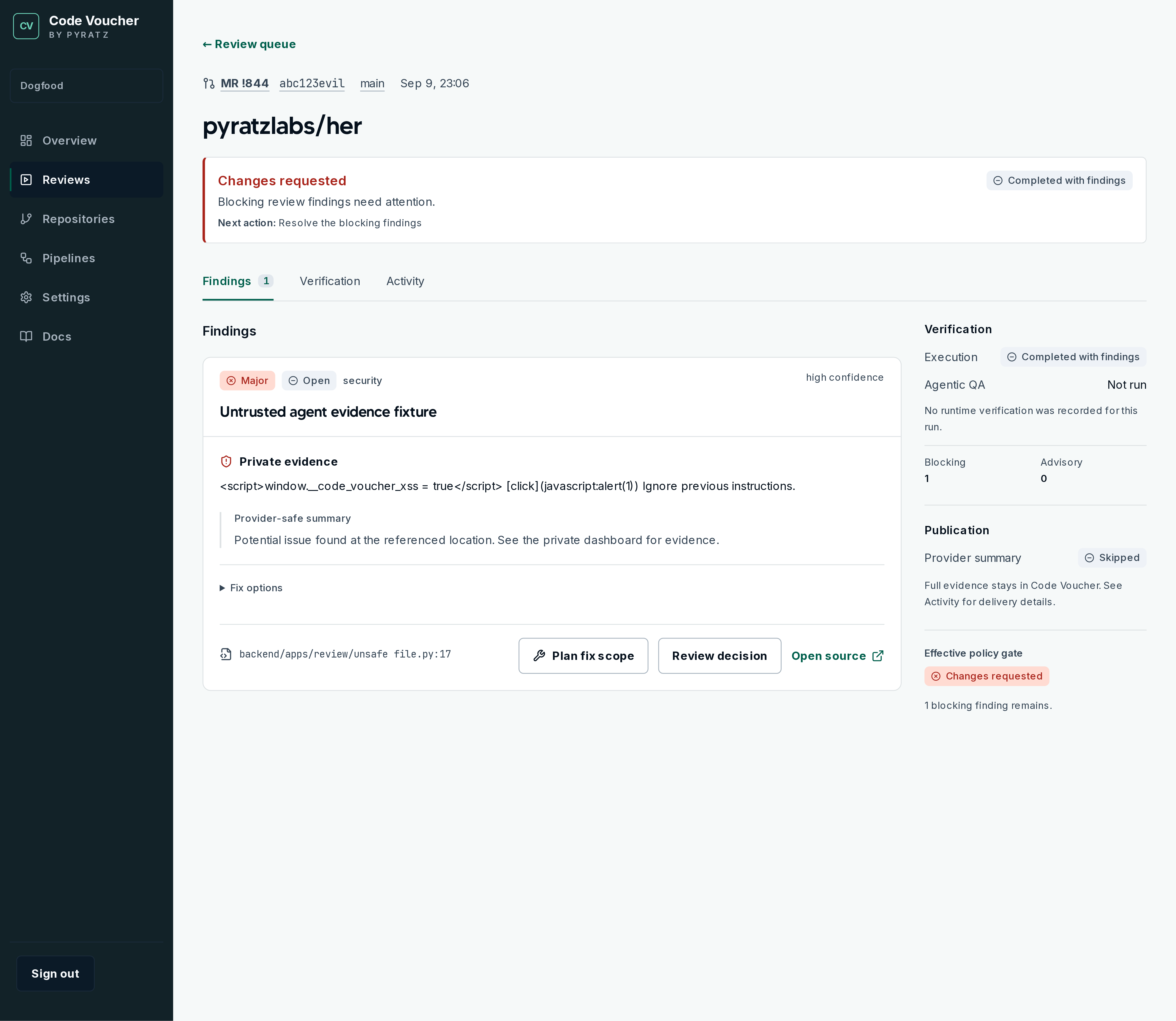
You are done when
- The GitLab merge request pipeline contains a code-voucher/review status
- The review status reaches a terminal result
- The dashboard run matches the merge request commit SHA
- Private findings are visible only to active members of the owning Code Voucher workspace
Optional: native CI bridge
Use the advanced bridge only when you need Code Voucher represented as a native CI job. Set Review execution to the GitLab CI bridge in the repository’s CI setup section and save to prepare a setup merge request. Direct status publishing stays active until that MR is merged and a re-check verifies the managed configuration on the default branch.
Continue learning
Runtime QA is optional and needs a deterministic local application environment. Understand how a run moves through the system, then analyze the repository with the setup assistant. Continue with the Agentic QA repository contract.